Introduction
Our smartphones contain a lot of private information, including photos, messages, contacts, social media accounts, and personal files. A simple screen lock is useful, but sometimes you may want an extra layer of protection for specific apps or parts of your phone.
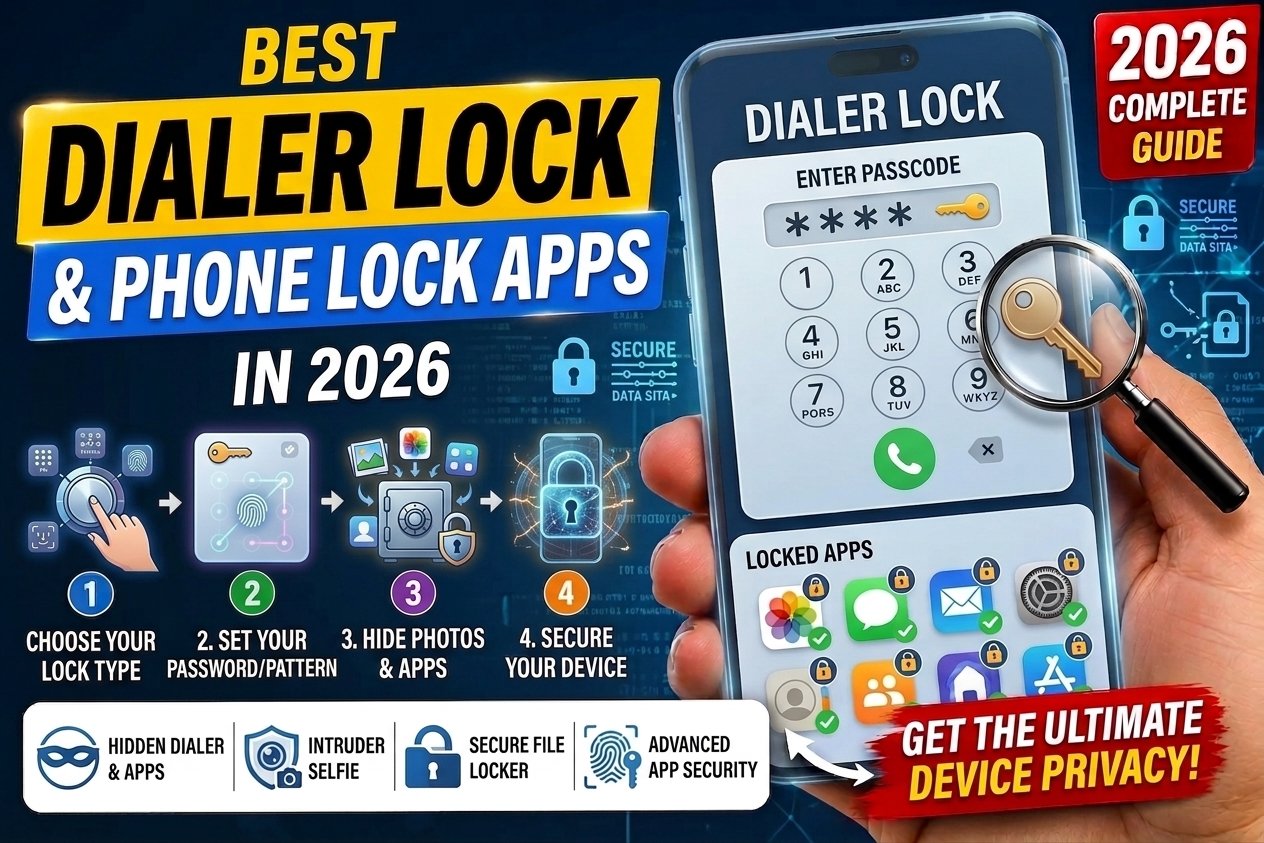
Dialer lock and phone lock apps can help protect your phone, contacts, incoming calls, gallery, and other private apps with a PIN, pattern, or fingerprint. Some apps also offer features such as photo vaults, intruder alerts, and app-lock controls.
In this guide, we will look at some of the best dialer lock and phone lock apps, their features, benefits, limitations, and what to check before installing one.
What Is a Dialer Lock App?
A dialer lock app is designed to add protection around your phone or calling-related features. Depending on the app, it may help restrict access to the dialer, contacts, call history, or other selected apps.
Some app-locking tools can also protect system apps such as Contacts, SMS, Settings, and incoming calls.
This can be useful if you sometimes give your phone to family members, friends, or children.
What Is a Phone Lock App?
A phone lock app adds another security layer to selected parts of your device.
For example, you may be able to lock:
- Phone app
- Contacts
- Messages
- Gallery
- Gmail
- Settings
- Files and folders
Many Android phones also provide built-in privacy or app-lock features, so it is worth checking your phone’s settings before installing a third-party app.
Best Dialer Lock & Phone Lock Apps
Here are some popular options to consider in 2026.
| App | Best For | Main Features |
| AppLock by DoMobile/PIPS Tech | General app protection | PIN, pattern, fingerprint, app lock |
| AppLock by SailingLab | Simple phone privacy | App lock, screen lock, photo vault |
| Smart AppLock | Extra privacy controls | PIN, pattern, intruder alerts |
| LOCKit | Multiple privacy features | App lock, vault, intruder alerts |
| Samsung Secure Folder | Samsung users | Private apps and files |
| Google Pixel Private Space | Pixel users | Separate private area for apps |
Features and availability can differ between devices, Android versions, and regions.
1. AppLock by DoMobile/PIPS Tech
AppLock is one of the well-known choices for protecting individual Android apps. Its Google Play listing says it can lock apps such as WhatsApp, Instagram, Gallery, SMS, Contacts, Gmail, Settings, and incoming calls. It also supports PIN, pattern, and fingerprint unlocking on supported devices.
Main Features
- App locking
- PIN protection
- Pattern protection
- Fingerprint support on supported devices
- Photo and video vault
- Random keyboard
- Intruder selfie
- Time-based locking
- Settings protection
Best For
Users who want one app to protect several private areas of their phone.
2. AppLock by SailingLab
SailingLab’s AppLock focuses on protecting apps and personal information. Its Google Play listing includes support for locking social apps, Gallery, Contacts, Gmail, Settings, incoming calls, and other selected apps.
Main Features
- PIN lock
- Pattern lock
- Fingerprint support
- Photo vault
- Screen lock
- Settings protection
- App protection
- Lock new apps
Best For
People looking for a straightforward app-locking solution with several extra privacy features.
3. Smart AppLock
Smart AppLock is another option for users who want to protect individual apps instead of locking the entire phone.
It can provide features such as PIN and pattern protection, fake lock screens, and alerts for unsuccessful access attempts.
Main Features
- PIN and pattern protection
- App locking
- Intruder alerts
- Fake lock screens
- Time-based controls
- Privacy protection
Best For
Users who want more control over how individual apps are protected.
4. LOCKit
LOCKit combines app protection with additional privacy features. It can lock individual apps and also provide a private area for photos and videos.
Some versions also offer protection for selected phone settings and intruder alerts.
Main Features
- App lock
- Photo vault
- Video vault
- Intruder alerts
- Settings protection
- PIN or pattern security
Best For
Users who want app locking together with basic private-file protection.
5. Samsung Secure Folder
If you use a Samsung Galaxy phone, you may already have a built-in option called Secure Folder.
It provides a separate protected area for apps and files and can be a better choice than installing an unknown third-party locker.
Main Benefits
- Built into supported Samsung devices
- Protects private apps and files
- Separate private space
- Uses device security features
- No additional app-locker installation required
Built-in tools can be especially useful because they are designed to work with the phone’s operating system.
6. Google Pixel Private Space
Google Pixel devices with supported Android versions can offer Private Space, which provides a separate area for apps that you want to keep apart from your normal app list.
It can be useful for people who want privacy without relying on a separate third-party app locker.
Best For
Pixel users who want a built-in privacy feature rather than downloading an additional lock app.
How to Choose the Best Phone Lock App
Choosing a lock app should not be based only on the number of features.
Before installing one, consider the following:
1. Security Method
Look for options such as:
- PIN
- Pattern
- Fingerprint
- Device biometrics
Fingerprint support depends on your phone and Android version.
2. Privacy
Check what permissions the app requests and read its privacy information before giving it access to personal data.
3. Ease of Use
A good lock app should be easy to set up and should not make unlocking your own phone unnecessarily difficult.
4. Performance
Avoid apps that noticeably slow down your phone or constantly display unwanted notifications.
5. Built-In Options
First check whether your phone already provides an app-lock or private-space feature. Samsung, Google Pixel, Xiaomi, OnePlus, and other Android manufacturers may provide different built-in privacy options.
How to Lock Your Dialer or Phone App
The exact steps depend on your phone and lock app, but the general process is simple.
Step 1: Install a Trusted App Lock
Download an app from a reputable source such as Google Play.
Step 2: Create Your Security Method
Set a strong PIN, pattern, or supported biometric method.
Avoid using an easy PIN such as your birthday or 1234.
Step 3: Select the Phone App
Open the app-lock list and look for your Phone or Dialer app.
Step 4: Enable the Lock
Turn on protection for the selected app.
Step 5: Test It
Open the Phone app and check whether the security screen appears as expected.
If your phone has a built-in app-lock feature, the steps may be different.
Benefits of Dialer and Phone Lock Apps
Main Benefits
- Protect private apps
- Restrict access to contacts
- Protect call-related information
- Keep photos private
- Add another layer of security
- Useful when sharing your phone
- Can support fingerprint unlocking
Quick Benefits Table
| Benefit | Description |
| Privacy | Helps prevent unwanted access |
| Convenience | Lock only the apps you need |
| Fingerprint | Faster unlocking on supported devices |
| PIN Protection | Provides an additional security method |
| App Control | Lets you choose which apps to protect |
Pros of Phone Lock Apps
| Pros | Description |
| Easy to Set Up | Most apps use simple setup steps |
| Extra Protection | Adds another layer beyond the screen lock |
| Flexible | You can protect selected apps |
| Multiple Lock Types | PIN, pattern, and biometrics may be available |
| Privacy Features | Some apps include vaults and intruder alerts |
Cons of Phone Lock Apps
| Cons | Description |
| Extra Permissions | Some apps may request sensitive permissions |
| Ads | Free versions may contain advertisements |
| Performance | Some apps may use additional system resources |
| Compatibility | Features can vary between Android phones |
| Forgetting PIN | Recovery can become difficult if you forget your lock code |
Built-In Lock vs Third-Party App Lock
| Feature | Built-In Lock | Third-Party Lock |
| Installation | Usually not required | Required |
| System Integration | Usually better | Depends on the app |
| Extra Features | May be limited | Often offers more features |
| Privacy | Depends on manufacturer | Depends on developer |
| Ease of Use | Usually simple | Varies |
| Availability | Depends on phone brand | Available on supported Android devices |
For many users, a built-in privacy feature is a good first choice because it is already designed for that device.
Common Mistakes to Avoid
Avoid these mistakes when choosing a phone lock app:
- Downloading apps from unknown websites
- Giving unnecessary permissions
- Using a very easy PIN
- Installing several lock apps at the same time
- Ignoring privacy policies
- Forgetting your recovery information
- Assuming an app lock replaces your main phone security
A third-party app lock should be treated as an additional privacy layer, not a replacement for your phone’s main screen lock.
Are Dialer Lock Apps Safe?
They can be useful, but safety depends heavily on the specific app, developer, permissions, and how the app handles your information.
Before installing one:
- Check the developer
- Read recent reviews
- Review requested permissions
- Download from a trusted app store
- Check the privacy policy
- Avoid suspicious APK files
Also remember that an app requiring extensive permissions deserves extra attention before you install it.
Final Thoughts
The best dialer lock and phone lock app depends on what you want to protect. If you only need basic protection, a simple app locker may be enough. If you use a Samsung or Pixel phone, checking the built-in privacy features first can be a better option.
For third-party apps, options such as AppLock, Smart AppLock, and LOCKit offer different combinations of app protection and privacy features.
Whichever option you choose, use a strong PIN, keep your phone updated, review app permissions, and download security tools from trusted sources.
Disclaimer
This article is for educational and informational purposes only. App features, availability, permissions, and compatibility may change over time. Always check the current app information and privacy policy before installation. A third-party lock app should not be considered a complete replacement for your phone’s built-in security features.