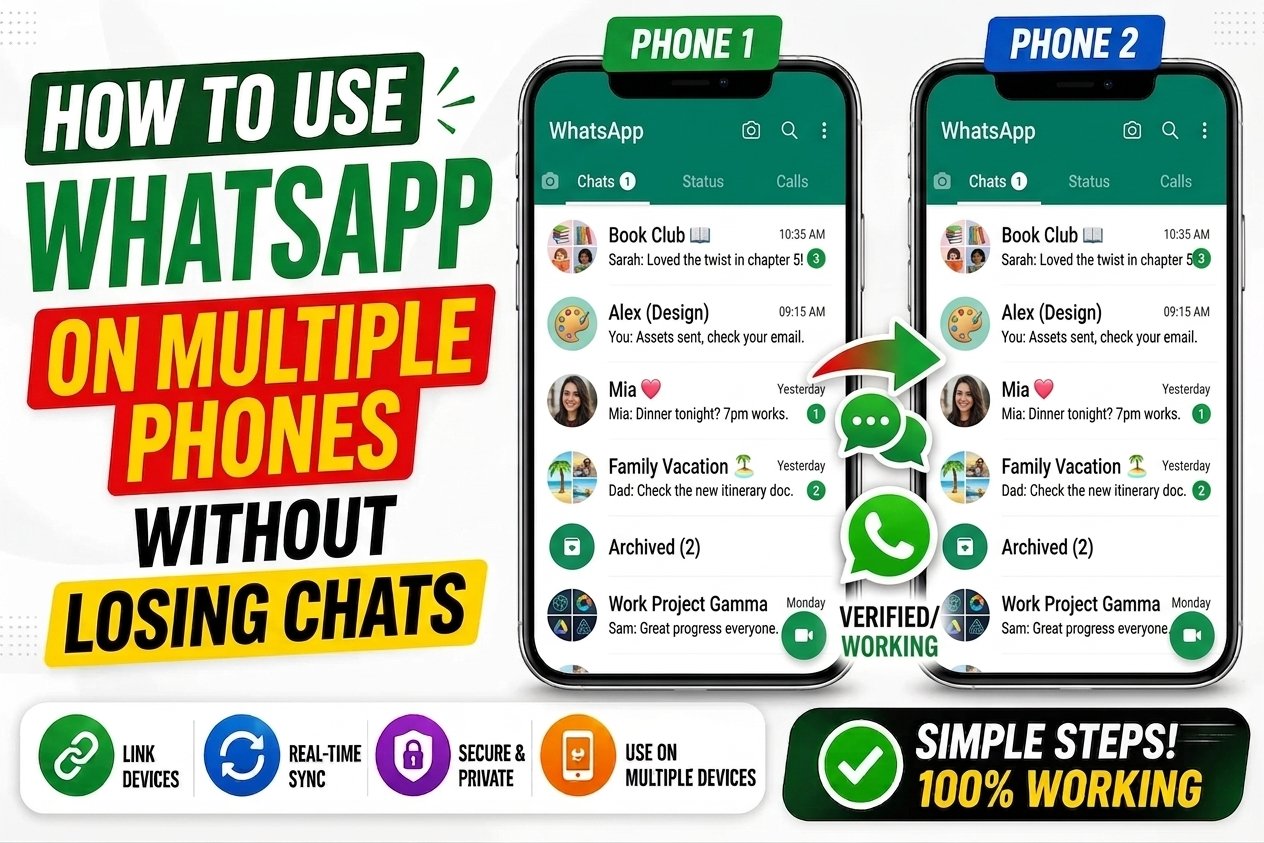
WhatsApp is one of the most popular messaging apps for chatting, calling, sharing photos, and staying connected. Many people now use more than one smartphone, so having access to the same WhatsApp account on multiple phones can be very useful.
The good news is that WhatsApp supports linked devices, which lets you use the same account on another phone without logging out of your main device. You can keep your chats available while using WhatsApp more conveniently across different phones.
In this guide, we will explain how to use WhatsApp on multiple phones without losing chats, how to link another phone, and what you should do to keep your account and messages safe.
Can You Use WhatsApp on Multiple Phones?
Yes. WhatsApp allows users to link additional phones to their main account through its companion-device feature.
Instead of registering your phone number again on the second phone, you can connect it to your existing WhatsApp account.
What You Can Do
• Use the same WhatsApp account on multiple phones
• Send and receive messages from linked phones
• Access your conversations on another device
• Keep your main phone connected
• Manage connected devices from WhatsApp settings
This is useful for people who have a personal phone and a work phone or keep a second phone as a backup.
What You Need Before Linking Another Phone
Before starting the setup, make sure both phones have a working internet connection.
Basic Requirements
• Your main phone with WhatsApp already active
• A second compatible smartphone
• The latest official WhatsApp app
• Internet access on both devices
• Access to your main phone for QR code scanning
Keeping WhatsApp updated can also help prevent setup problems caused by older app versions.
How to Use WhatsApp on a Second Phone
The process is simple and does not require you to enter your phone number on the second phone as a new account.
Step 1: Install WhatsApp on the Second Phone
First, install the official WhatsApp app on your second smartphone.
• Open the official app store
• Search for WhatsApp
• Install the latest version
• Open WhatsApp after installation
Do not enter your phone number as a new registration if you want to use the second phone as a linked device.
Step 2: Select the Companion Device Option
When the setup screen appears on the second phone, look for the option to link the phone to an existing account.
Depending on your WhatsApp version, the wording may be similar to “Link as companion device.”
A QR code should then appear on the second phone.
Step 3: Open WhatsApp on Your Main Phone
Now use your primary phone.
• Open WhatsApp
• Go to Settings
• Select Linked Devices
• Tap Link a Device
• Use the camera to scan the QR code
The exact menu layout can vary slightly between Android and iPhone.
Step 4: Let WhatsApp Sync Your Chats
After the QR code is scanned, WhatsApp will connect the second phone to your account.
Your messages and other account information may take some time to appear.
The syncing time can depend on:
• Internet speed
• Number of chats
• Media files
• Phone performance
Once the process is complete, you can use WhatsApp on both phones.
Will You Lose Your WhatsApp Chats?
Normally, linking a phone as a companion device does not mean you have to delete your existing chats from the main phone.
However, it is always a good idea to keep a recent WhatsApp backup before making major account or device changes.
Before Linking a New Phone
• Check your latest WhatsApp backup
• Keep your main phone available
• Use the official WhatsApp app
• Make sure both phones have internet
• Do not uninstall WhatsApp from the main phone unnecessarily
A backup gives you an extra layer of protection if something goes wrong during a device change.
How to Check Linked WhatsApp Phones
You can check which devices are connected to your account from your main phone.
On WhatsApp
• Open WhatsApp
• Go to Settings
• Tap Linked Devices
• Review the connected devices
• Remove anything you do not recognize
Checking this section regularly is a good security habit.
Benefits of Using WhatsApp on Multiple Phones
Using a single account across multiple phones can make everyday communication easier.
Main Benefits
• No need to switch accounts repeatedly
• Easy access to conversations
• Useful for work and personal phones
• Convenient when traveling
• Helpful when using a backup phone
• Messages can be accessed from linked devices
Quick Benefits Table
| Benefit | Why It Helps |
| Multiple Phone Access | Use one account on more than one phone |
| Chat Access | Check conversations from linked devices |
| Convenience | Reduce the need to switch phones |
| Work Flexibility | Keep communication available on a work phone |
| Backup Phone | Stay connected when using another device |
Things to Keep in Mind
Although linked devices are convenient, there are some limitations.
| Point | What to Know |
| Internet | Linked phones need internet access |
| Device Support | WhatsApp may have limits on linked devices |
| Syncing | Large chat histories can take time to sync |
| Security | Anyone with access to a linked phone may access the account |
| Updates | Features can change with future WhatsApp versions |
How to Keep Your Chats and Account Safe
Account security is important when you connect WhatsApp to another phone.
Recommended Security Tips
• Use only the official WhatsApp application
• Turn on two-step verification
• Lock your smartphones with a PIN or biometric security
• Check linked devices regularly
• Remove phones you no longer use
• Never share verification codes
• Avoid scanning unknown QR codes
If you see a device that you do not recognize, remove it immediately and review your account security settings.
Common Mistakes to Avoid
Some users can accidentally cause account or access problems by following the wrong setup method.
Avoid These Mistakes
• Registering your number as a new account on the second phone
• Uninstalling WhatsApp from the main phone without checking your backup
• Using modified or unofficial WhatsApp apps
• Sharing your QR code with other people
• Ignoring unknown linked devices
• Using an outdated version of WhatsApp
• Forgetting to remove an old phone from your account
Following the official linking process is the safest option.
What If Your Chats Do Not Appear?
Sometimes chat syncing may take longer than expected.
Try these simple solutions:
• Check the internet connection on both phones
• Update WhatsApp
• Restart the second phone
• Keep the main phone available during setup
• Check the Linked Devices section
• Try linking the device again if necessary
If the problem continues, check WhatsApp’s official support information for the latest troubleshooting steps.
Can You Use WhatsApp on Android and iPhone?
WhatsApp supports linked-device functionality across supported smartphones, so users can connect compatible phones even when they use different mobile platforms.
However, available features can vary depending on the device, operating system, and current WhatsApp version.
Always use the latest official version for the best experience.
Is Using WhatsApp on Multiple Phones Safe?
Yes, using WhatsApp’s official linked-device feature is generally a safer option than using unofficial apps or third-party tools.
WhatsApp uses end-to-end encryption for personal messages and calls, but users should still protect their phones and linked devices.
The most important steps are to use official software, enable two-step verification, and regularly review connected devices.
Final Thoughts
Using WhatsApp on multiple phones is a convenient option for people who regularly switch between devices. With the official linked-device feature, you can connect another phone to your existing WhatsApp account without setting it up as a completely separate account.
To avoid problems, keep a recent backup, use the official WhatsApp app, follow the correct companion-device setup, and regularly check your linked devices.
With these simple steps, you can access your WhatsApp account more easily while keeping your chats and account security in mind.
Disclaimer
This article is for informational and educational purposes only. WhatsApp features, device limits, menus, and compatibility may change with future updates. Always use the official WhatsApp application and follow the latest instructions provided by WhatsApp.