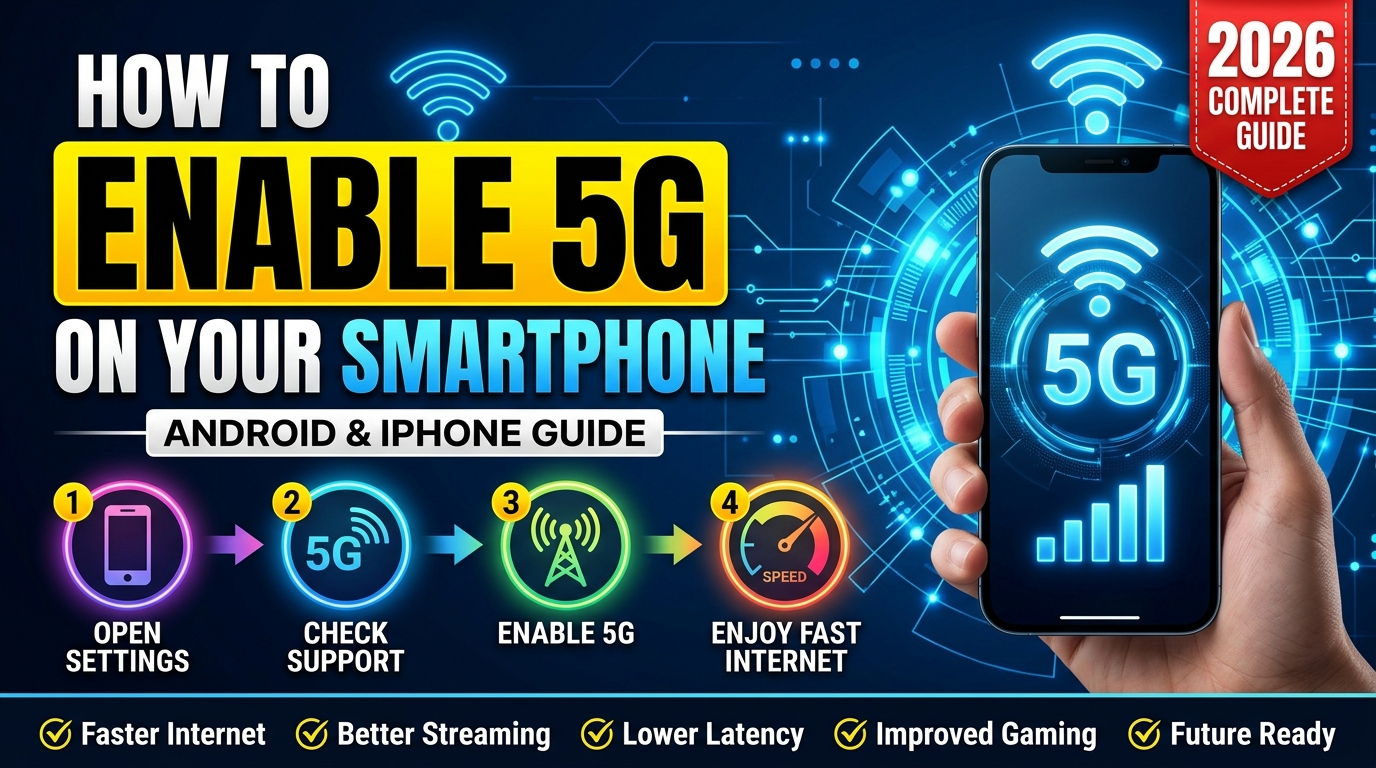
Are you wondering whether your smartphone supports 5G? Maybe your mobile carrier has launched 5G services in your area, but your phone is still showing 4G or LTE on the screen. If that sounds familiar, you are not alone.
Many smartphone users are unsure whether their device supports 5G or how to turn it on. The good news is that checking and enabling 5G is usually quick and simple.
In this guide, you will learn how to check if your phone supports 5G, how to enable it on Android and iPhone devices, and what to do if you cannot find the 5G option in your settings.
What Is 5G and Why Does It Matter?
5G is the latest generation of mobile network technology. It is designed to provide faster internet speeds, lower delay, and better performance in crowded areas compared to older 4G networks.
With 5G, you can enjoy:
- Faster downloads and uploads
- Smoother video streaming
- Better online gaming performance
- Clearer video calls
- Improved network reliability in busy places
While 4G is still useful and widely available, 5G is becoming the standard for modern smartphones.
How to Check If Your Smartphone Supports 5G
Before trying to enable 5G, you need to confirm that your phone actually supports it.
Here are the easiest ways to check.
Method 1: Look in Your Network Settings
Open your mobile network settings and look for available network modes.
If you see options such as:
- 5G
- 5G Auto
- 5G Preferred
- 5G On
then your smartphone supports 5G.
If you only see options like:
- 2G
- 3G
- 4G
- LTE
your device may not include 5G hardware.
Method 2: Search Your Phone Model Online
If you are unsure, search your phone model followed by the words “5G support.”
For example:
Samsung Galaxy A55 5G support
iPhone 13 5G support
The specifications will quickly confirm whether your device supports the latest network technology.
Method 3: Check the Phone Box or Specifications
Most manufacturers clearly mention 5G support on the phone box, official specifications page, or product description.
If the name of the phone itself includes “5G,” that is usually a good sign.
How to Enable 5G on Android Phones
The exact steps may vary slightly depending on the manufacturer, but the process is usually similar.
Follow these steps:
Settings → Mobile Network → Preferred Network Type → Select 5G
Some devices may show:
Settings → Connections → Mobile Networks → Network Mode → Select 5G/LTE/3G/2G
After selecting 5G, your phone will automatically connect whenever a 5G signal is available.
How to Enable 5G on iPhone
Apple makes enabling 5G very simple.
Follow these steps:
Settings → Cellular → Cellular Data Options → Voice & Data
You will usually see three options:
- LTE
- 5G Auto
- 5G On
Choose either 5G Auto or 5G On.
5G Auto allows the phone to switch between 4G and 5G to save battery life, while 5G On keeps the device connected to 5G whenever possible.
Why Is My Phone Still Showing 4G Instead of 5G?
This is one of the most common questions.
There are several possible reasons:
Your Area Does Not Have 5G Coverage
Even if your phone supports 5G, your city or neighborhood may not have full coverage yet.
Your Mobile Package Does Not Include 5G
Some carriers require a specific package or plan to access 5G services.
Your Phone Is Set to 4G Only
Many users accidentally select LTE or 4G mode during setup and never change it back.
Your SIM Card Needs Updating
Although most modern SIM cards support 5G, some older SIM cards may require replacement.
Your Phone Does Not Support Local 5G Bands
Different countries use different network frequencies. Some imported devices may not support local 5G bands.
Benefits of Using 5G
Switching to 5G offers several advantages:
- Faster internet browsing
- Better streaming quality
- Reduced lag during gaming
- Faster app downloads
- Improved video calling experience
- Better performance in crowded locations
As network coverage improves, these benefits will become even more noticeable.
Pros and Cons of 5G
Pros
- Significantly faster internet speeds
- Lower latency for gaming and video calls
- Improved network performance
- Better support for future technologies
Cons
- Coverage is still growing in some areas
- 5G can use more battery power
- Some mobile plans may cost more
- Older phones cannot use 5G networks
Tips for Getting the Best 5G Experience
Once your 5G connection is active, these tips can help you get better performance:
- Keep your phone software updated.
- Use 5G Auto mode to save battery.
- Stay in areas with strong signal coverage.
- Avoid using heavy phone cases that may interfere with signal quality.
- Check that your carrier offers reliable 5G coverage in your area.
Frequently Asked Questions
Q1: How do I know if my phone supports 5G?
Check your network settings for a 5G option or search your phone model online.
Q2: Can I enable 5G on a 4G-only phone?
No. A phone needs dedicated 5G hardware to connect to a 5G network.
Q3: Do I need a new SIM card for 5G?
Most users can continue using their existing SIM card, although some older SIM cards may need upgrading.
Q4: Why is my 5G speed not very fast?
Speed depends on network coverage, signal strength, congestion, and your mobile package.
Q5: Does using 5G drain the battery faster?
Yes, 5G can consume slightly more battery power than 4G, especially in areas with weak signal strength.
Conclusion
Checking and enabling 5G on your smartphone is easier than many people think. If your device supports 5G and your mobile carrier offers coverage in your area, you can usually activate it in just a few taps from your settings menu.
If you cannot find the 5G option, do not worry. It may simply mean that your phone does not support 5G or that your carrier has not enabled it for your plan yet.
As 5G networks continue to expand in 2026, enabling 5G on your smartphone is one of the easiest ways to enjoy faster and more reliable mobile internet.